
01
It writes the score first, then performs it
Symbolic planning gives the model a musical plan before audio synthesis. In the official workflow, melody and chord symbols can be inspected between those stages.

YuE2 is an open-weight music model that turns your lyrics and a style prompt into a full song with vocals. Its official workflow also gives you an editable score. Create audio in this browser studio; explore score editing in the model workflow below.
Add your lyrics, describe the musical direction, and generate a complete song in the browser. You can also include reference audio to guide a new rendition.
5 free credits to start. Sign in to generate your first song.
YuE2 is an open music generation model that turns written lyrics and a style description into a complete song with vocals and accompaniment, by first composing an editable musical score.
YuE2 comes from M·A·P (Multimodal Art Projection). The generation model is called YuE2-3B. You will also see it written as YuE2 AI, which refers to the same music model.
YuE2 adds a step called symbolic planning: it writes melody and chords as a readable score in ABC notation before rendering audio. In the official model workflow, you can inspect that score, change a chord and render another version. That middle step makes the composition part of the workflow, rather than leaving you with audio alone.
This site provides an online studio for lyrics, style prompts and reference audio. The site also provides audio transcription and downloadable scores. Use Audio to Sheet Music to turn a recording into a downloadable ABC notation file and score image. Use Audio to MIDI for a standard .mid file you can edit in your DAW.
The model separates the composition from the performance, so melody and harmony can become explicit inputs in an editing workflow.
01
Symbolic planning gives the model a musical plan before audio synthesis. In the official workflow, melody and chord symbols can be inspected between those stages.
02
Change a chord progression or revise a phrase in the ABC score, then generate a new rendition. This is a model-level workflow for people who want to work on the composition directly.
03
The official API supports melody-and-chord planning, melody-only planning and generation without a symbolic plan. Our browser composer uses the service's generation workflow and does not expose a planning-mode selector.

04
The official cover workflow uses a transcribed melody and a new style prompt. In this studio, YuE2 AI Music Cover provides reference-audio generation with lyrics and style.

05
An external agent can help revise a score, style and lyrics before the model renders another version. The official editing demonstration follows a song through several musical revisions; an editing agent is not included in this studio.
Start with lyrics, a reference recording, or a melody you hummed. Then turn audio into a score or MIDI when you want to work on the notes.
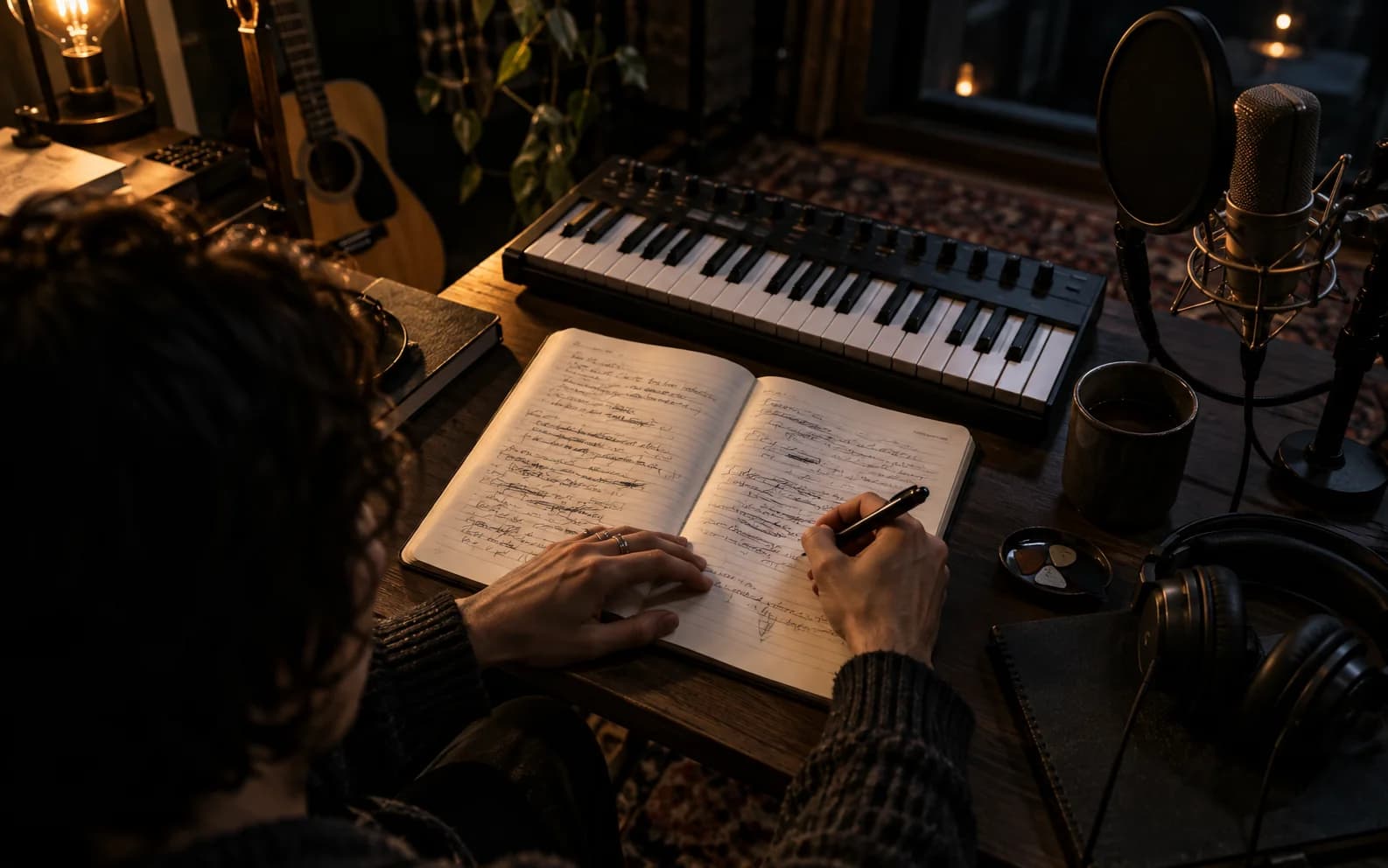
Paste your words, describe the sound you want, and turn them into a song with vocals and accompaniment.
Create from lyrics
Upload reference audio, add lyrics and a new style direction, and create a fresh rendition guided by that recording.
Create from audio
Record a melody for up to 120 seconds in your browser or upload audio. Add lyrics and a style to shape it into a song.
Start with a humHave audio? Turn it into a score or MIDI, then edit the notes.
Start with six official YuE2 examples across English, Chinese, Japanese and Spanish, then keep listening through additional covers. Compare the voices, phrasing and arrangements to find a direction for your own song.
Y2YuE2
Y2YuE2
Y2YuE2
Y2YuE2
Y2YuE2
Y2YuE2
 Raymond
 kealix
 evalena
 EpicGarage
 Zombie Robby
 INJURY
 M.F[T.O] Beats
 Aldo NX
 MC Escher
 madebyanubis
YuE2 suits people who care what the song is made of, not only how the first take sounds. Different workflows suit different starting points.

Paste the lyrics, describe the arrangement and listen. The online studio gives you a way to explore a vocal demo before planning a recording session. Review the phrasing and rewrite the words or musical direction for another attempt.
The official model's score workflow lets you inspect melody and harmony, revise the composition and render another version. Use that workflow when the notes themselves matter; use this studio when you want an audio draft from lyrics, style and a reference.

YuE2 publishes downloadable weights, evaluation material and separate planning and synthesis interfaces. These give you a way to examine the model and build a workflow around its stages. Explore the model review.
The YuE2 team's September 12, 2026 comparison reports strengths and tradeoffs across 192 WildSongBench prompts. These are model evaluations, not guarantees for this online service.
| Measure | YuE2 | Suno v6 |
|---|---|---|
| Musicality | 5.9075 | 5.6558 |
| SongBench average | 6.7316 | 6.5562 |
| Prompt adherence (Q3O) | 4.6819 | 4.6258 |
| Pronunciation errors (PER, lower is better) | 8.44% | 7.58% |
| Text alignment (AllMusicCaps) | 0.4054 | 0.4305 |
In this reported comparison, YuE2 scores higher on musicality and SongBench average, while Suno v6 has fewer pronunciation errors and higher AllMusicCaps text alignment. The YuE2 row here is the standard result, not the separate best-of-8 result.
We also ran six songs through both platforms from the same lyrics, and each pair states how closely the two briefs were matched before we say anything about the result. Hear YuE2 and Suno V6 side by side.
The useful distinction is whether you want a quick audio draft or a workflow that lets you work on the composition itself.

Bring your lyrics, set the style, choose an audio format and follow the generation. These four steps show the browser studio workflow.
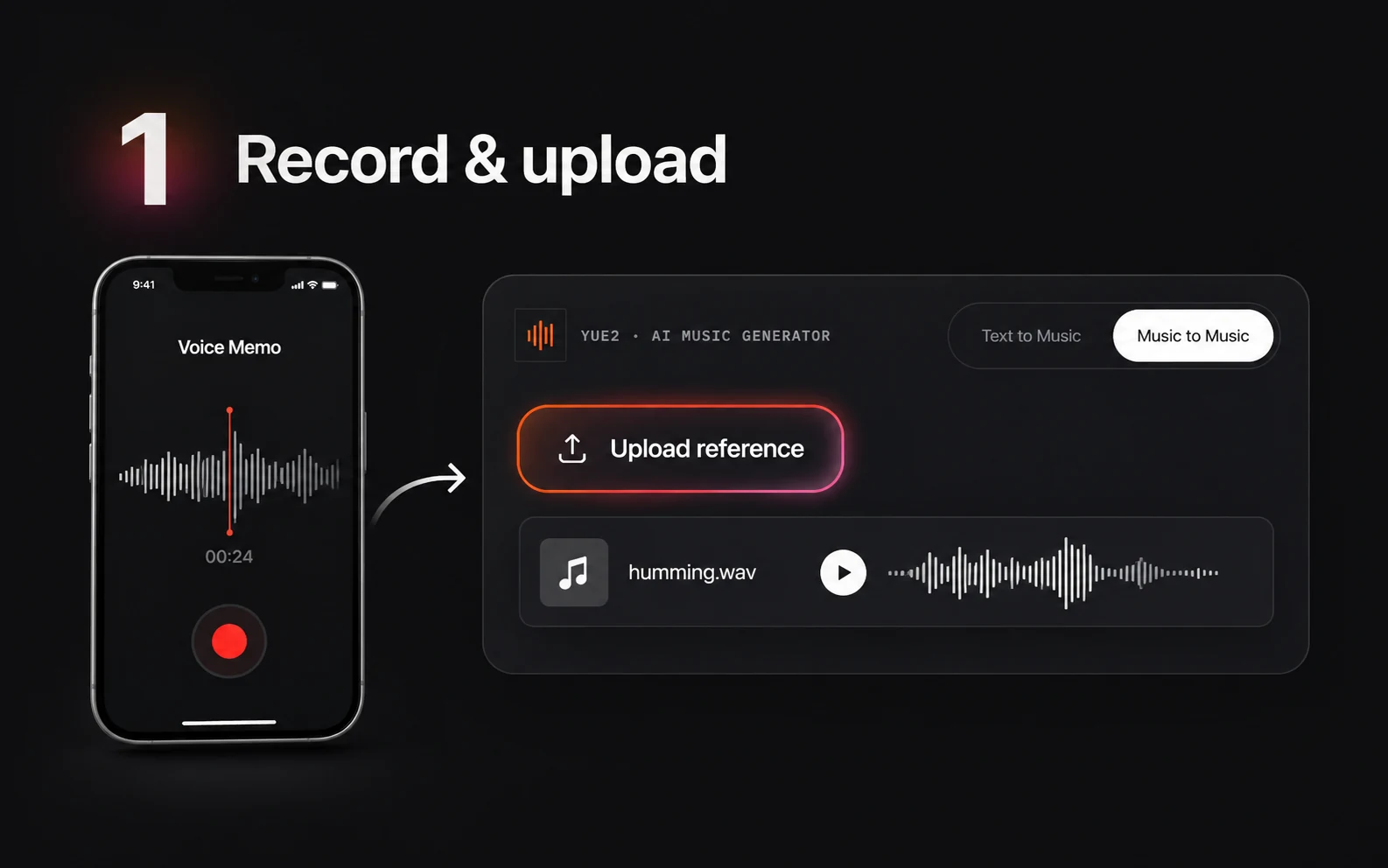
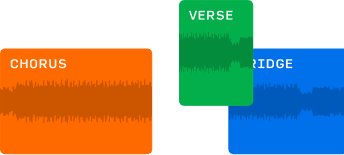
Select Text to Music and paste the words you want performed. Label sections such as Verse, Chorus and Bridge, and leave space between them. If a recording is part of your brief, choose Music to Music and upload a reference as well.
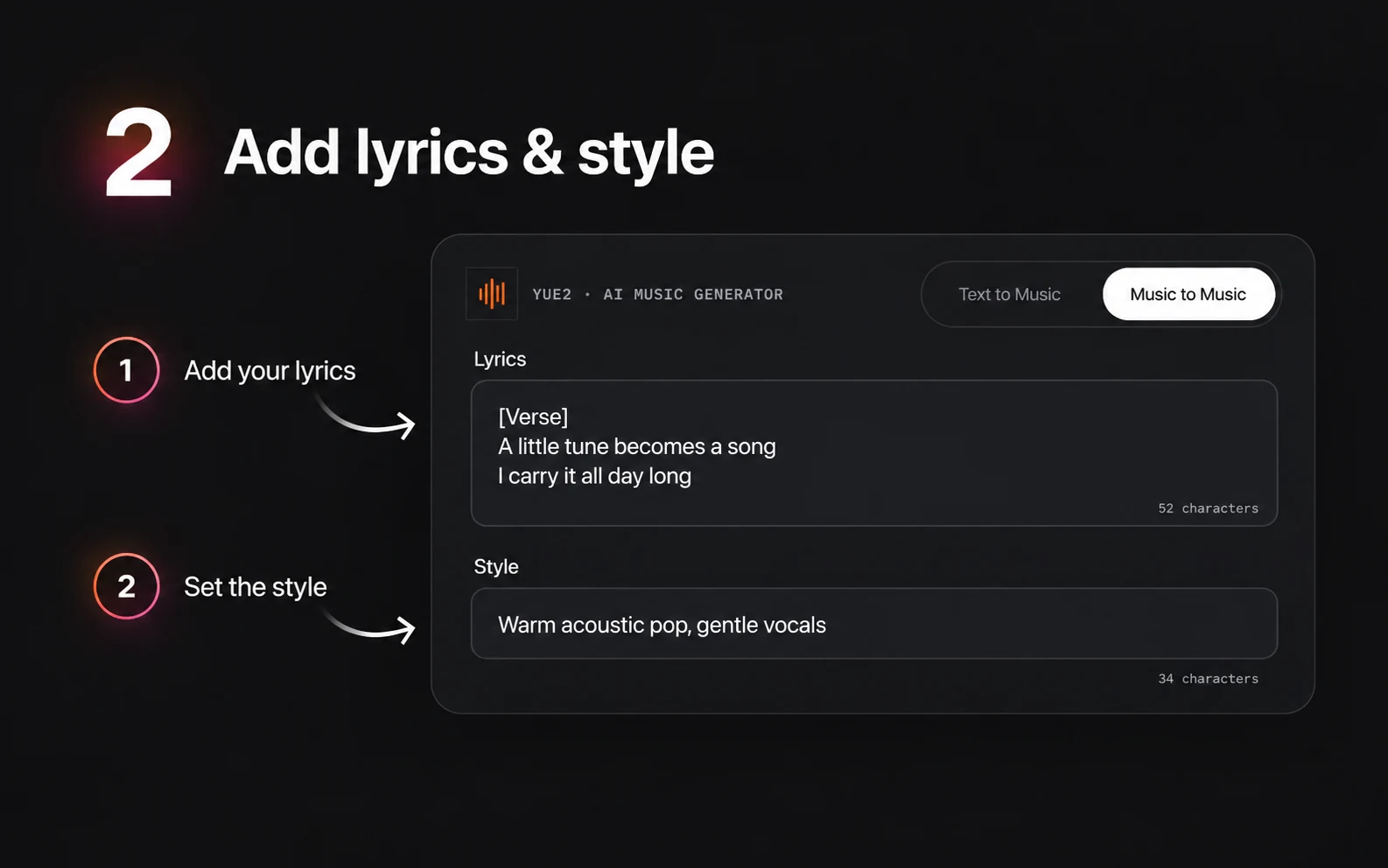
Describe the genre, vocal character, main instruments and mood. Start with a preset or write a focused brief, such as warm indie pop with acoustic guitar, piano and gentle drums. Keep arrangement instructions in Style, separate from the lyrics.
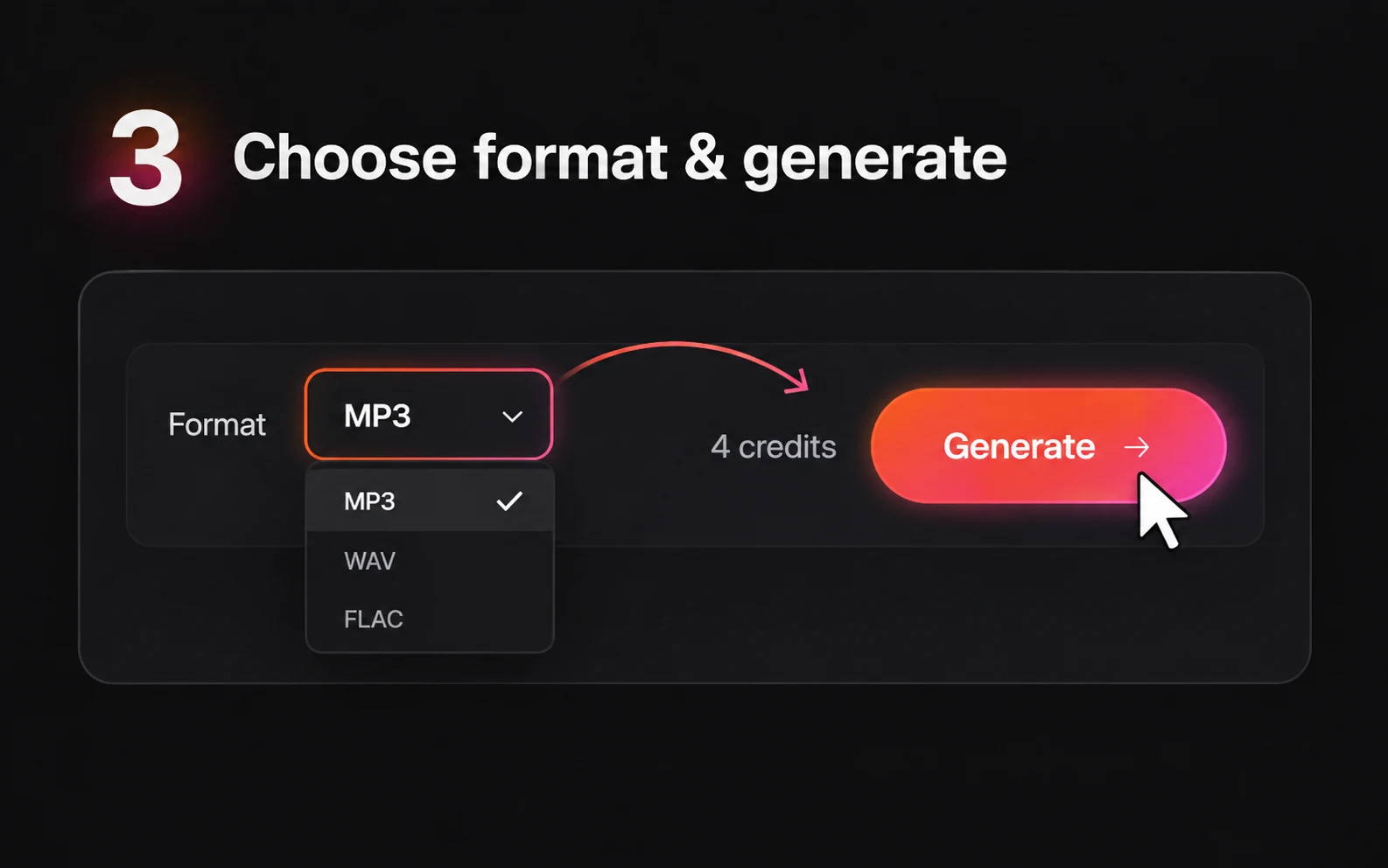
Choose MP3, WAV or FLAC, sign in and check your credits before selecting Generate. Text to Music uses 3 credits; Music to Music uses 4. Each new generation uses credits.
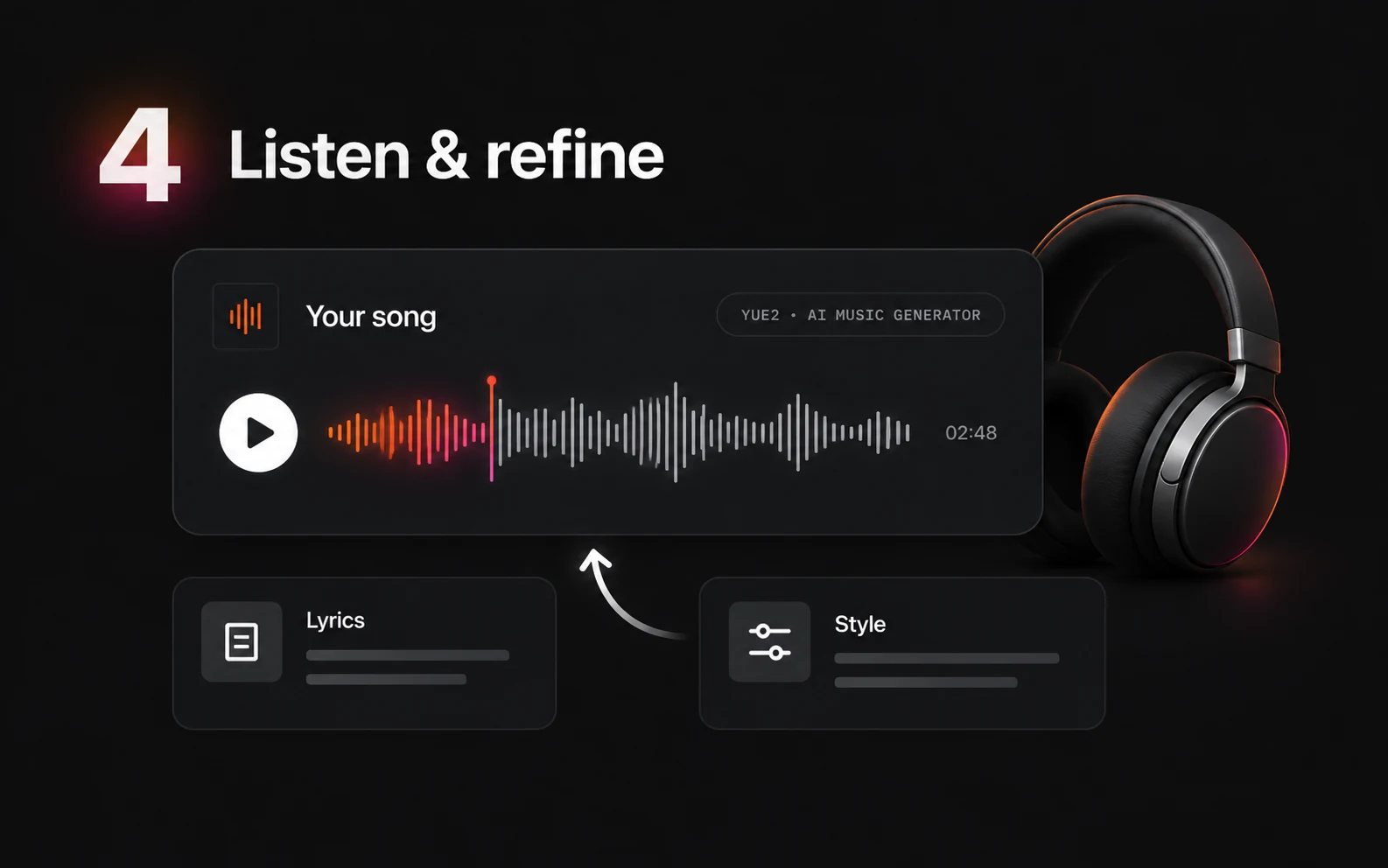
The estimated progress bar moves to 95% over about 60 seconds, then waits for the actual result. It is a visual estimate, not a measurement of model completion. When your song is ready, play it on the page and download the file. Downloads are unlimited on every plan.
For melody and chord editing outside this studio, see the score-editing experiments in our YuE2 review.
Start with 5 free credits. Text to Music uses 3 credits per generation; Music to Music uses 4. Every plan includes unlimited downloads. Paid packs are one-time purchases with unrestricted commercial use, with no subscription, royalty or revenue share.
$9.9
One-time · 99 credits
$0.10 / credit
$29.9
One-time · 370 credits
$0.08 / credit (approx.)
$49.9
One-time · 700 credits
$0.07 / credit (approx.)
YuE2 is an open music generation model from M-A-P. It turns lyrics and a style prompt into songs with vocals and accompaniment, with a symbolic planning workflow that can make melody and chords editable before audio rendering.
The Free plan includes 5 credits. One-time packs start at $9.90 for 99 credits; Basic is $29.90 for 370 and Plus is $49.90 for 700. Text to Music uses 3 credits and Music to Music uses 4. Every plan includes unlimited downloads; paid plans add unrestricted commercial use with no royalties or revenue share.
In the 12 September 2026 comparison, standard YuE2 scores 5.9075 on musicality against 5.6558 for Suno V6. Suno V6 has fewer pronunciation errors: 7.58% against 8.44%. These reported results do not guarantee individual studio outputs. The YuE2 vs Suno V6 page walks through scores, editing, credits and downloads.
The official local quick start specifies Linux, Python 3.10+ and a 24 GB NVIDIA GPU with BF16 support. Community ComfyUI workflows are separate integrations. This online studio does not require either installation.
The six official examples on this homepage include English, Chinese, Japanese and Spanish. They demonstrate the model rather than customer work from this studio. Pronunciation and phrasing should be reviewed for each generated song.
The official model supports covers guided by a transcribed score. Here, Music to Music accepts one reference recording, lyrics and a style prompt to guide another rendition. The studio does not expose a score editor or guarantee an unchanged melody.
Symbolic planning is the stage where YuE2 writes a melody and chords before rendering audio. The official workflow supports full planning, melody-only planning and direct generation. This browser composer does not expose these planning settings or editable score exports.
Start with lyrics and a description of the sound. Organize the words into sections and put musical directions in Style. Sign in to generate online. Choose MP3, WAV or FLAC, listen on the page and download the completed song. Downloads are unlimited on every plan.
Bring the words you want to hear. Choose a musical direction and turn the idea into a song. Start with 5 free credits.